


Who Is Tracking My Phone?
3.9255.00 Reviews
App Specs
- Version
- 2.2.3
- Updated On
- License
- Free
- Downloads
- 1,000,000+
- Developer
- GeniusTools Labs
- Categories
- Tools
- Platform
- Android
Screenshots
 Analysis by AppCompare
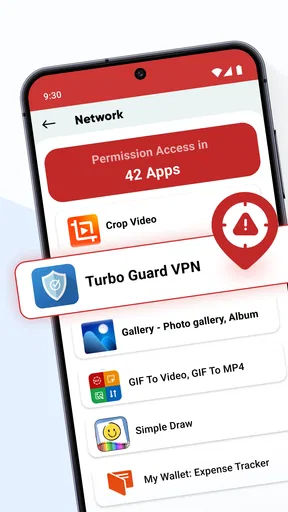
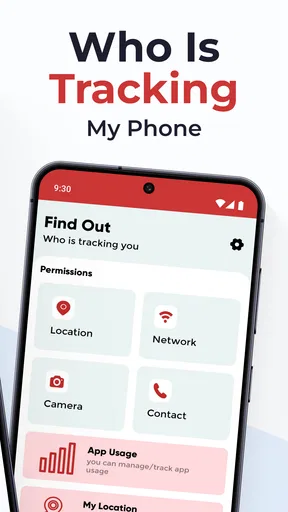
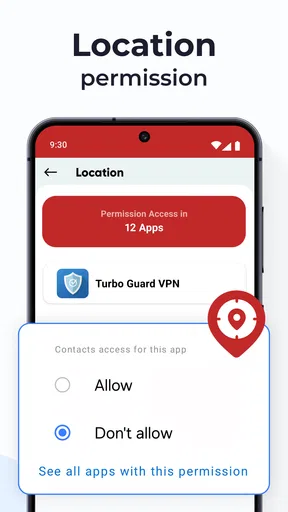
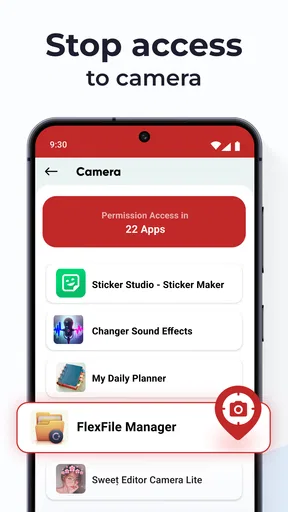
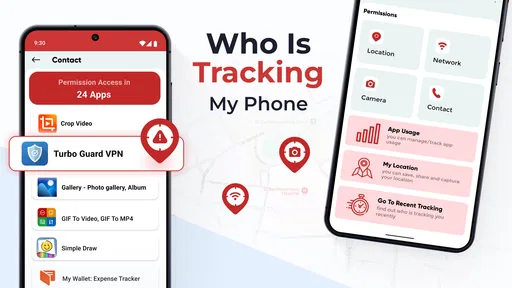
Who Is Tracking My Phone? is a free Android tools app from GeniusTools Labs that I found most useful when I wanted a clearer view of which installed apps might be asking for more access than they really need. Its purpose is straightforward: help you review app permissions and spot unnecessary access on your device. That sounds simple, but the value depends heavily on how clearly the information is presented and how comfortable you are making decisions about permissions yourself.
I approached it less like a security alarm and more like a permission-audit companion. It does not replace careful judgment, Android’s own settings, or a full security investigation. Instead, it gives everyday users a focused place to start. The app is free to install, rated for Everyone, and has passed the million-install mark. Its current version is 2.2.3, and it runs on Android 8.0 or later.
How clearly the app presents permission information
The first thing I noticed is that the app’s usefulness depends on reducing a fairly confusing Android task into a more approachable review. Most people do not regularly open every application’s settings page to examine access requests. A dedicated tool can make that process feel less scattered, especially when you are trying to understand why an unfamiliar app might need access to a particular part of your phone.
For readability, the strongest approach is to use the app as a screening layer rather than expecting it to explain every permission in depth. I would open it when I had several old apps installed, then work through the results slowly instead of treating every highlighted item as proof of wrongdoing. A permission can be reasonable in one context and excessive in another. A navigation app, for example, has a clear reason to request location access, while a simple offline utility deserves more scrutiny if it asks for unrelated information.
This distinction matters because a list of permissions alone does not tell the whole story. What I wanted from the app was a prompt to ask better questions: Do I still use this application? Does its main function depend on the access it requests? Would “only while using the app” or another less intrusive choice be enough? That way, the tool encourages a practical review instead of creating unnecessary panic.
Navigation is most comfortable when I handle one app at a time and keep a note of decisions I have made. That workflow is especially helpful for anyone who finds long technical screens tiring. Rather than trying to clean up the whole phone in one sitting, I would begin with recently installed apps, unfamiliar apps, and software I no longer use. This turns a vague privacy concern into a short, manageable routine.
The app’s average rating is 3.9 from around 3.7 thousand ratings, with roughly 255 written reviews. I read that overall response as a sign of useful but not universally smooth experiences. Permission tools live or die by clarity, and users will naturally disagree about whether the warnings, explanations, and organization feel detailed enough for their needs.
Worth Reading Before You Choose

EA SPORTS FC Mobile 26 Is a Bigger Football Game, but It Takes Time

Flipboard Shows What News Apps Must Do Beyond the Feed

Switching to Android Auto Means Rethinking Your Driving Routine

Google Calendar Makes a Crowded Week Easier to Manage

Ludo King Makes the Most of the Minutes Between Plans

Baby Panda World Brings Quick Play to Modern Phones, but Its Game Library Feels Busy
Making a permission review easier to follow
My practical advice is to avoid rushing through the first scan. Start by identifying the apps that handle sensitive tasks, such as messaging, banking, photos, contacts, or location-based services. Then compare what each app does with the access it requests. The important insight is that the tool is more valuable when it helps you build a habit of comparison, not when it gives you a dramatic-looking list to react to.
For readers who have difficulty reading dense interfaces, the best strategy is to increase the phone’s system text size before beginning and review fewer entries per session. I would also keep the device in a familiar orientation and use the same order every time: identify the app, check its purpose, inspect the permission, and decide whether to keep, limit, or remove access through Android’s controls. The app can point you toward a concern, but the final change may still require moving into the phone’s own settings.
That extra step is important. A permission-management app is not a substitute for Android’s native controls. I see it as a guide that helps me decide where to look. If you expect a single tap to solve every privacy issue, you may find the process less convenient than expected. If you are willing to use it alongside system settings, it becomes more useful.
Motor, visual, hearing, and cognitive considerations
From a motor-access perspective, a permission audit can be demanding because it involves repeated taps, reading, and switching between screens. Someone with limited dexterity may prefer to review only the most important applications rather than attempting a complete device cleanup. A focused session also reduces the chance of changing an access setting accidentally.
I would approach each decision deliberately, especially when the app directs me toward a system page. Before confirming a change, I would read the permission name and the application name again. This simple pause is worthwhile because privacy settings can have consequences: removing access may affect a feature, while leaving it enabled may provide more access than you want. The right decision is not always “deny everything.” It is the setting that matches how you actually use the app.
For users with visual sensitivities, contrast, text size, screen magnification, and the phone’s accessibility settings will make a major difference. I would not judge the tool only by a quick glance at its default appearance. Android’s own display adjustments can make permission lists easier to inspect, although larger text may also mean more scrolling. That is a reasonable trade-off for someone who values legibility over seeing more entries at once.
People with color-vision differences should be cautious about relying on color alone when interpreting warnings or categories. I would read the accompanying labels and the actual permission names instead of assuming that a particular color automatically means danger. A privacy review should be understandable from words and context, not just visual emphasis.
Hearing access is less central to this kind of tool because its main task is visual permission review. That can make it more practical for someone who prefers written instructions or cannot rely on audio prompts. At the same time, anyone who needs spoken guidance may want to use Android’s screen reader or other assistive features and check whether navigation remains logical when content is read aloud.
Cognitive load is the bigger issue for many people. Permission names can sound abstract, and seeing many concerns together can make a phone feel less safe rather than more safe. I found it better to use a three-question filter: what does this app do, why might it need this access, and do I still trust or use it? Writing those questions down can help users who lose track when switching between an app and system settings.
The most accessible way to use this app is as a guided checklist, not as a one-time verdict. That approach supports users who need more time, fewer decisions per session, or a consistent routine. It also produces better privacy choices because it leaves room for context.
A realistic everyday use case
Imagine installing several free apps over time and later noticing that the phone feels cluttered. You remember giving permissions quickly during setup, but you no longer remember which apps can access location, contacts, or other sensitive areas. I would open Who Is Tracking My Phone? during a quiet moment, begin with apps I rarely use, and inspect them one by one.
If an old photo-editing app still has access that I do not need, I would first decide whether I use the app at all. If I do not, uninstalling it may be cleaner than managing its permissions. If I still use it occasionally, I would check whether Android offers a narrower permission choice. This is one of the app’s less obvious strengths: it can expose decisions that are really about app maintenance, not just permission toggles.
For a family member who is less confident with smartphones, I would sit beside them and use the app to create a short list of applications worth discussing. I would not make changes without explaining the effect. This is especially important for people who depend on accessibility, communication, health, or travel apps. Removing a permission that seems unusual could also remove a function they rely on.
Where situational access works well
The app is most useful when I have a specific reason to investigate the phone. A new application that asks for access I did not expect is one example. Another is preparing to lend a device, helping a relative review their phone, or cleaning up after uninstalling software. In these situations, a focused tool is easier to remember than a general security suite filled with unrelated features.
It can also help after a period of rapid app installation. When I test several utilities, games, or shopping apps, I may accept permissions quickly just to reach the main screen. Coming back later with a dedicated review gives me a chance to reconsider those choices with more patience. This two-stage workflow—allowing only what is needed initially, then auditing later—is more realistic than expecting perfect decisions during every installation.
Travel is another useful context. Before going on a trip, I would review location-related access and remove permissions from apps I do not expect to use. I would also avoid making broad changes to essential services immediately before departure. The better approach is to review early, test important apps afterward, and keep a record of anything that depends on location or other access.
For people using older Android phones, compatibility is reasonably broad because the minimum requirement is Android 8.0. Still, older devices can make navigation feel slower or more cramped, particularly when combined with large text or magnification. I would use the app in short sessions and keep Android’s settings open only when needed, rather than switching repeatedly between many screens.
The app is less suitable when you need continuous, expert-level threat detection or detailed forensic analysis. Its focus is installed-app permission management. Someone investigating suspicious behavior, malware, account compromise, or network traffic should look for a more specialized security solution and use the phone’s security settings as well.
It is also not ideal for someone who wants automatic decisions. Permission warnings require interpretation. The app can make the review more visible, but it cannot know whether a particular application is essential to you, whether a feature will break after access is removed, or whether you trust the developer. Those are personal and contextual judgments.
How it compares with Android’s usual settings
Android already provides permission controls, so the main question is whether this app makes the process easier enough to justify keeping another tool installed. In my experience, the native settings are the final authority because that is where I can apply changes. Who Is Tracking My Phone? is more appealing when I want a dedicated overview and a privacy-focused starting point rather than a broad tour through device settings.
The trade-off is another layer between noticing an issue and fixing it. If I already know exactly which app I want to inspect, opening Android settings directly is faster. If I am unsure where to begin, the dedicated app can help me organize the investigation. This makes it a companion for discovery, not a replacement for the operating system.
Compared with a full mobile security suite, it is narrower and potentially less distracting. That focus may suit someone who only wants to understand app access. On the other hand, a broader security product may be better for users who want malware scanning, web protection, account alerts, or additional device safeguards in one place. I would not install this app expecting those wider functions.
Remaining barriers and practical cautions
One barrier is the language of privacy itself. Terms such as location, contacts, camera, microphone, and storage can be familiar, but the implications are not always obvious. The app can draw attention to them, yet users still need plain explanations and a willingness to research an app’s purpose. If the interface presents too many items without enough context, beginners may either ignore the warnings or deny permissions indiscriminately.
Another barrier is the difference between reviewing and changing. A user with limited dexterity, memory difficulties, or low confidence may manage the first part but struggle when Android opens a separate settings screen. I would make the process more accessible by reviewing one application at a time, using system accessibility features, and asking a trusted person to confirm the result rather than taking over the entire phone.
There is also a maintenance cost. After installing new software, the list changes, and an earlier review can become outdated. I would revisit the app after installing a group of new applications or when something on the phone behaves unexpectedly. I would not treat a single clean review as permanent proof that the device is safe.
The free price makes experimentation easy, but in-app purchases range from $0.99 to $99.99 per item. That is worth noticing before tapping any upgrade option. I would begin with the free experience and decide whether it genuinely improves my workflow before considering a purchase. Users who dislike optional spending inside utility apps should be particularly careful around upgrade prompts.
The Everyone content rating makes the app approachable for a wide audience, but age suitability does not remove the need for supervision when helping children or inexperienced users change device permissions. A child may not understand why a game needs a particular access request, and an adult should explain the choice rather than turning the review into a guessing exercise.
Privacy tools also require trust. I would read each screen carefully, avoid granting additional access casually, and use the app only for the task I intended. The central benefit is better awareness, so the safest workflow is to keep the review focused and verify important changes in Android’s own settings.
An inclusive verdict for everyday Android users
After using Who Is Tracking My Phone? as a permission-review aid, I see a useful but limited tool. It is a good fit for someone who wants a clearer starting point than Android’s scattered settings provide, especially after installing many apps or helping another person clean up a phone. Its focused purpose makes it easier to understand than a large security package when permission management is the only concern.
I would recommend it to users who are comfortable making careful decisions and who want prompts to question unnecessary access. It is also helpful for accessibility-minded routines because the review can be broken into small sessions, adjusted with Android’s display tools, and followed as a repeatable checklist. The app does not need to make the decision for me to be valuable; it needs to help me notice where a decision is worth making.
I would skip it if I already know how to navigate Android permissions and only need to change one setting. I would also choose a broader security product for malware protection or ongoing threat monitoring. People who expect definitive answers about whether an app is spying on them may be disappointed, because permission access is evidence to examine, not automatic proof of harmful behavior.
GeniusTools Labs has built something approachable around a real everyday problem: people accept access requests and forget about them. The app’s 1M-plus installs show that this concern reaches a large audience, while its 3.9 average suggests that the experience will not satisfy everyone equally. My recommendation is to use it slowly, verify important changes in Android, and judge permissions against each app’s actual purpose.
In the end, I found the app most valuable when it encouraged a calm, inclusive review process. It can help turn confusing access requests into manageable questions, but the strongest results come from combining its overview with Android’s native controls, larger text or screen-reader support when needed, and a little common sense. For that specific job, it is worth trying—provided you treat it as a guide rather than a complete privacy solution.
Pros
- Quickly identifies apps requesting location and other sensitive permissions.
- Simple interface makes privacy checks easy for non-technical users.
- Helps reveal unexpected background access to personal data.
- Useful for spotting suspicious or unnecessary tracking behavior.
- Can encourage better permission management and privacy awareness.
Cons
- Results may require technical knowledge to interpret correctly.
- Some tracking activity can remain hidden from ordinary permission scans.
- Features may vary depending on the Android version and device brand.
- Frequent alerts could become distracting during regular phone use.
- Privacy tools may need broad access to provide accurate monitoring.
FAQs for Who Is Tracking My Phone?
What is Who Is Tracking My Phone?
Who Is Tracking My Phone? is a privacy and security app designed to help users understand whether their phone may be monitored or accessed without permission. It typically checks for suspicious applications, unusual permissions, tracking-related settings, and other warning signs. It should be viewed as a diagnostic tool rather than a guaranteed way to detect every form of surveillance or spyware.
Can Who Is Tracking My Phone? detect all spyware or tracking software?
No security app can guarantee that it will find every type of spyware, stalkerware, or tracking method. Who Is Tracking My Phone? can identify certain suspicious apps, permissions, and device behaviors, but advanced or well-hidden threats may avoid detection. For better protection, keep Android or iOS updated, review installed applications regularly, use a strong screen lock, and download software only from trusted sources.
Does the app show who is tracking my phone?
The app may help identify suspicious applications, services, permissions, or settings connected with tracking, but it usually cannot reveal the exact person behind the activity. Phone tracking can also result from legitimate services such as location sharing, family safety tools, lost-device features, or account access. Any warning should therefore be investigated carefully before deleting an app or accusing someone of monitoring the device.
Is Who Is Tracking My Phone? safe to install and use?
Before using the app, check its official store listing, developer information, privacy policy, requested permissions, and recent user reviews. A trustworthy security tool should explain why it needs access to device information and should not request unrelated permissions. Avoid unofficial APK files or modified versions, and remember that granting broad access to any privacy app can create additional security and data-protection concerns.
What should I do if the app finds something suspicious?
Do not immediately remove an unfamiliar application if doing so could alert an abusive person or affect important evidence. First, review the app name, permissions, installation date, and related account activity. Update your device, change important passwords from a trusted device, enable two-factor authentication, and consider contacting a qualified security professional. If personal safety is involved, seek help from a trusted organization before making changes.


